The Google Translate app is the one tool I tell every traveler to download before they even think about packing a suitcase. It handles over 130 languages, works without a cell signal, and can read a menu in a dimly lit restaurant just by pointing your camera at it. But most people only scratch the surface of what it can actually do. This guide walks through the features that matter in real situations, the ones that save you when you are standing on a train platform in rural Japan staring at a timetable you cannot read.
Quick Answer: Download the app from your phone’s app store, tap the language names at the bottom to pick your pair, then type, speak, or point your camera. The key step most people skip is downloading offline language packs ahead of time. Go to Settings, then Offline Translation, and tap the download icon next to any language you might need without service.
What Makes the Google Translate App Different From the Website
The website version is fine for quick lookups on a laptop. The app is a different animal entirely. It packs features the browser version cannot touch because it taps directly into your phone’s hardware.
The camera translation alone justifies the app install. You point your lens at a sign, a menu, or a product label, and the text overlays in your language right on the screen. No typing. No guessing. The app processes the image on your device in many cases, which means it works faster and keeps your data private.
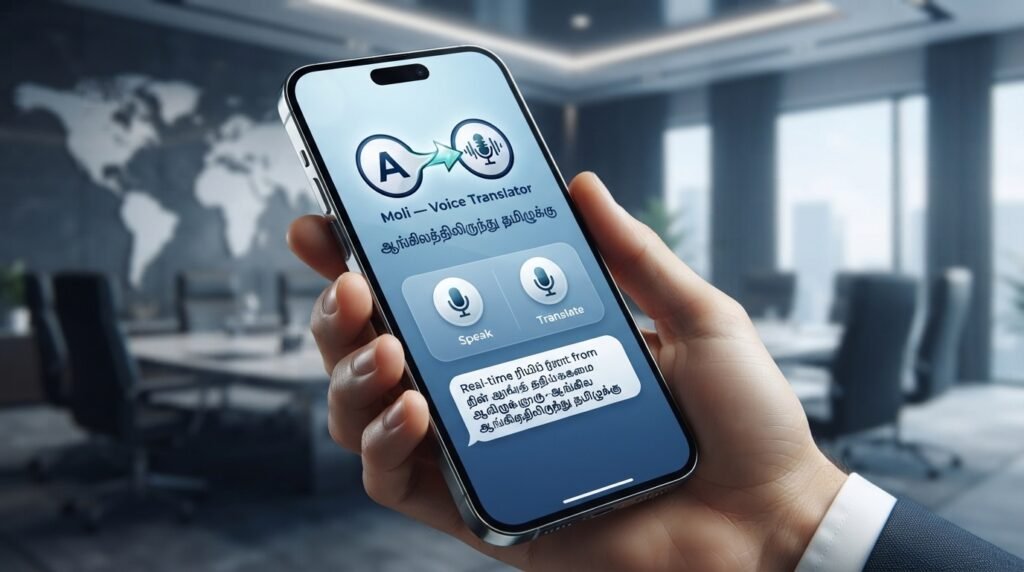
Then there is voice conversation mode. You tap the microphone, speak, and the app speaks back in the target language. It detects which language is being spoken and switches automatically. This is the feature that turns a halting, phrasebook-style interaction into something closer to an actual conversation.
The app also stores your translation history and syncs it across devices if you sign in. That phrase you needed at the pharmacy in Madrid is still there when you land in Buenos Aires three months later.
Pro Tip: Sign into the app with your Google account before a trip. Your saved translations and phrasebook entries sync automatically, and you can access them from any device if your phone gets lost or stolen.
These hardware-dependent features are why the app has over 1 billion installs on the Google Play Store alone. The website is a dictionary. The app is an interpreter in your pocket.
Setting Up Offline Mode Before You Need It
The most common mistake people make with the Google Translate app is assuming it will work anywhere. It will, but only if you prepare it first.
When you translate without a downloaded language pack, the app sends your text or audio to Google’s servers, processes it, and sends the result back. No internet, no translation. Offline mode skips the server entirely and runs the translation engine locally on your phone.
Here is the setup process:
- Open the app and tap your profile picture or the hamburger menu in the top left
- Select “Offline Translation”
- You will see a list of available languages with download icons next to each one
- Tap the download icon for any language you need
- Wait for the download to finish. Some packs are over 200 MB, so use WiFi
The offline packs are not the full neural machine translation models Google uses online. They are compressed versions. The quality is still good enough for practical use, but expect slightly clunkier phrasing compared to the online version. For reading signs, asking directions, and ordering food, the difference is negligible.
Which languages should you download? At minimum, the official language of every country on your itinerary. Better yet, add regional languages too. In Spain, Spanish is obvious, but Catalan and Basque packs exist and will help in Barcelona and Bilbao respectively.
Pro Tip: Set a calendar reminder to update your offline packs every six months. Google periodically refreshes them with improved models, and the app does not always push an automatic update notification.
One limitation worth knowing: offline mode does not support camera translation for all languages. The visual recognition piece still requires an internet connection for some less common scripts. Check whether your target language supports offline camera translation before you rely on it.
Camera Translation and the Instant Visual Feature
Camera translation is where the Google Translate app feels genuinely futuristic. There are actually three distinct modes here, and people confuse them constantly.
Instant mode is the default. You hold your phone up to text and the translation overlays in real time, replacing the original words on your screen. It works best on printed text with decent contrast. Handwritten notes, stylized fonts, and low light will trip it up.
Scan mode lets you take a photo and then highlight specific text to translate. This is better for dense documents, menus with tiny print, or situations where you cannot hold the phone steady. The app processes the image, identifies text regions, and you swipe over what you want translated.
Import mode grabs an existing photo from your gallery. Useful when someone sends you a picture of a document or sign.
Here is a quick comparison of when to use each:
| Mode | Best For | Requires Internet | Speed |
|---|---|---|---|
| Instant | Signs, short labels, simple menus | Sometimes (language dependent) | Real-time |
| Scan | Dense text, documents, tiny print | Usually not (with offline pack) | 2-5 seconds |
| Import | Photos sent by others, screenshots | Depends on language pack | 3-8 seconds |
The camera feature struggles with vertical Japanese and Chinese text, curved surfaces like wine bottles, and text on busy backgrounds. If the overlay looks garbled, switch to scan mode and highlight smaller sections at a time. That usually clears up the recognition errors.
Pro Tip: For restaurant menus in low light, use your phone’s flashlight or ask to take a photo with flash. The extra contrast makes a dramatic difference in text recognition accuracy.
Voice and Conversation Mode for Real Dialogue
Tapping the microphone icon and speaking a single phrase works well enough. The real power move is Conversation mode, which you activate by tapping the “Conversation” button (it looks like two microphones) at the bottom of the screen.
Once active, the app listens continuously. It detects which language is being spoken and translates in both directions automatically. You do not need to tap anything between turns. You speak English, it speaks Spanish. The other person speaks Spanish, it speaks English. The screen shows both the original and translated text so you can verify what was heard.
A few things make this mode work better in practice:
- Speak clearly and at a normal pace. Shouting or over-enunciating actually reduces accuracy
- Hold the phone between you and the other person, not shoved toward their face
- Background noise is the enemy. Step away from traffic, loud music, or crowds
- Short sentences work better than long, rambling ones. Break complex thoughts into chunks
The transcription appears in real time, so you can catch mishearings immediately. If the app heard “beach” when you said “peach,” you can rephrase before the translation goes through.
Pro Tip: Download the offline speech recognition pack for your languages too. It is separate from the text translation pack and lives in your phone’s system settings under Languages & Input, not inside the Translate app itself.
For languages with non-Latin scripts, the app shows a transliteration alongside the translation. This is incredibly helpful for languages like Hindi, Russian, or Arabic where you might want to at least attempt the pronunciation yourself.
Phrasebook, Saved Translations, and the Transcription Feature
The Phrasebook is the most underused feature in the Google Translate app. It is a personal dictionary of saved translations that you can organize and pull up without retyping or re-speaking anything.
To save a translation, tap the star icon that appears next to any result. That translation gets added to your Phrasebook, accessible from the main menu. You can organize entries by language pair and search through them later.
What makes this powerful is building a custom phrase list before a trip. Spend 20 minutes translating and saving phrases you know you will need:
- “Where is the bathroom?”
- “I have a reservation under [your name]”
- “Is this gluten-free? I have an allergy”
- “Just the check, please”
- “Does this bus go to the city center?”
You now have a personalized travel phrasebook that works offline and does not require you to butcher the pronunciation while a waiter stares at you impatiently.
The transcription feature is newer and less known. It translates live speech into text in real time, essentially creating subtitles for someone speaking another language. It is designed for lectures, guided tours, and presentations. The accuracy depends heavily on audio quality and speaker clarity, but for getting the gist of a museum guide’s explanation, it works surprisingly well.
Pro Tip: Create a dedicated Phrasebook list for medical needs. Translate phrases about allergies, medications, and symptoms ahead of time. In an emergency, you can pull them up instantly without fumbling through translation attempts.
Common Problems and How to Fix Them
The Google Translate app is not perfect, and knowing its failure modes ahead of time saves frustration.
The translation sounds unnatural or wrong. This happens most often with idiomatic expressions, slang, and culturally specific concepts. The app translates literally. “It’s raining cats and dogs” becomes nonsense in most languages. Rephrase your input to be direct and literal before translating. Instead of “I’m dying of hunger,” say “I am very hungry.”
Camera mode will not recognize text. Check your lighting first. Then try switching from Instant to Scan mode. If neither works, the font may be too stylized or the text too small. Take a regular photo and try Import mode, or type the text manually.
Offline mode is not working. The most likely culprit: you downloaded the text pack but not the camera or speech pack. These are separate downloads. Go back to Offline Translation settings and check whether additional files are needed for the features you want to use.
The app keeps switching to the wrong language in Conversation mode. Tap the language names at the top and manually lock them instead of relying on auto-detection. Auto-detect works well for distinct language pairs (English and Japanese) but struggles with similar ones (Portuguese and Spanish).
Translations are slow or timing out. You are probably in a low-signal area and have not downloaded the offline pack. Switch to airplane mode and try again. If it works offline, the problem was your connection. If it does not, your offline pack is missing or corrupted. Delete and redownload it.
Pro Tip: If a translation seems off, reverse it. Take the output, swap the language direction, and translate it back to English. If the result is wildly different from your input, rephrase and try again.
Key Takeaways
- Download offline language packs before you travel. No pack means no translation when you lack cell service, and that is exactly when you will need it most
- Camera translation has three modes: Instant for real-time overlays, Scan for precise selection, and Import for existing photos. Match the mode to the situation
- Conversation mode handles bidirectional voice translation automatically, but short clear sentences in a quiet environment produce the best results
- The Phrasebook feature lets you build a personalized, offline-ready list of translations for specific situations like medical needs or restaurant ordering
- When translations sound wrong, rephrase your input to be literal and direct. Idioms, slang, and complex sentences reduce accuracy significantly
Frequently Asked Questions
Q: Does the Google Translate app work without internet?
A: Yes, but only if you download offline language packs ahead of time. Go to Settings, then Offline Translation, and tap the download icon next to any language you need. Offline mode supports text translation for all downloaded languages and camera translation for many, but not all, languages.
Q: How accurate is the Google Translate app?
A: Accuracy varies by language pair and context. For widely spoken languages like Spanish, French, and German, the app is quite reliable for practical communication. For less common languages or complex, idiomatic sentences, expect rougher results. A 2021 study by UCLA researchers found that Google Translate achieved over 90% accuracy for Spanish to English medical discharge instructions, but accuracy dropped significantly for languages like Armenian and Farsi.
Q: Can the Google Translate app translate a whole document?
A: The app does not directly translate document files. You can use the camera’s Scan mode to capture and translate printed pages section by section. For digital documents, copy and paste the text into the app or use Google Translate on the web, which supports uploading PDF, DOCX, and other file formats.
Q: Is the Google Translate app free?
A: Yes, the app is completely free. There are no premium tiers, no subscription fees, and no limits on usage. The offline language packs are also free to download.
Q: How do I translate a conversation in real time?
A: Tap the Conversation button at the bottom of the screen, which looks like two overlapping microphones. The app will listen for both languages and translate each side automatically. You can also manually select which language each person is speaking for more control.
Q: Can I use the Google Translate app to translate text in images on my phone?
A: Yes. Tap the camera icon, point your lens at the text, and the app will overlay the translation in real time using Instant mode. Alternatively, use Scan mode to take a photo and highlight specific sections, or Import mode to translate text from an existing image in your photo gallery.
Q: Does the Google Translate app save my translation history?
A: Yes, the app saves your translation history locally on your device. If you sign in with your Google account, your history and Phrasebook entries sync across devices. You can clear your history at any time from the app settings.
Q: What languages does the Google Translate app support?
A: The app supports over 130 languages for text translation. Camera translation is available for around 90 languages, and Conversation mode supports roughly 70 languages. The full, current list is available on Google’s official Translate help page.
References & Further Reading
- Google Translate Help Center , Official documentation on all features, language availability, and troubleshooting
- Google AI Blog: Translate Updates , Technical explanations of the neural machine translation models powering the app
- UCLA Study on Medical Translation Accuracy , Research evaluating Google Translate’s reliability for clinical communication across multiple languages
- Google Play Store: Google Translate , Current app version, update notes, and user reviews
—
About This Article: This guide is based on hands-on use of the Google Translate app across multiple countries, languages, and operating systems. Every feature described here has been tested in real travel and communication scenarios. Language pack sizes, menu layouts, and feature availability may shift slightly with app updates, but the core functionality and setup steps remain consistent.