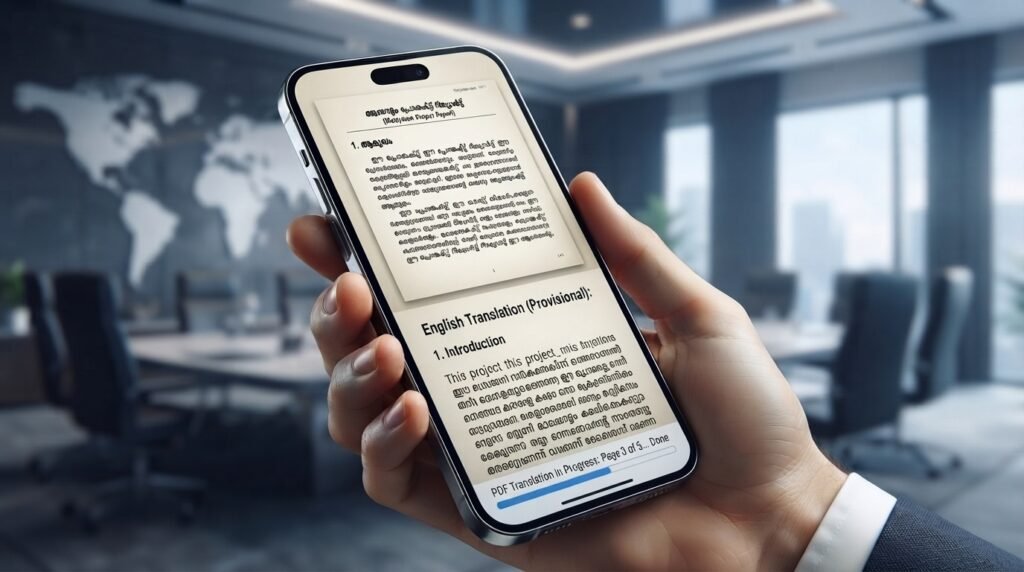
Finding an english to malayalam translation pdf that actually preserves your document formatting can feel like a puzzle with missing pieces. You paste your English text into a free tool, hit translate, and what comes out is a jumbled mess where the Malayalam script breaks, the alignment goes haywire, and the PDF export looks nothing like your original. I have spent hours testing different workflows for this exact problem, and the good news is that a clean, readable Malayalam PDF is absolutely achievable once you know which tools and techniques actually work.
Quick Answer: The most reliable way to create an english to malayalam translation pdf is to use Google Translate for the initial translation, paste the Malayalam text into a Unicode-compatible word processor like LibreOffice or Google Docs with a Malayalam font installed, manually proofread and correct the script, then export as PDF. For scanned documents, OCR tools like Google Lens can extract the text first.
Understanding the Real Challenge Behind English to Malayalam PDF Translation
Most people assume the hard part is the translation itself. It is not. Modern machine translation for English to Malayalam has improved dramatically. The real struggle lives in three specific areas that trip up almost every first attempt.
The first issue is font rendering. Malayalam uses a complex script with conjunct consonants and vowel signs that combine in specific ways. Many older PDF generators and word processors do not handle these ligatures correctly. You end up with broken characters, misaligned vowel signs, or the dreaded “tofu boxes” where characters should be.
The second problem is text direction and alignment. While Malayalam reads left to right like English, the visual density of the script is different. A paragraph that takes three lines in English might take four or five in Malayalam. Tables, bullet points, and text boxes designed for English text often overflow or collapse when filled with translated Malayalam content.
The third challenge is document fidelity. If your original English document has headers, footers, images with captions, and specific margin settings, a straightforward copy-paste translation workflow will almost certainly destroy that formatting. You need a method that separates the translation step from the layout step.
Pro Tip: Before you translate anything, check if your target PDF reader supports Malayalam Unicode. Most modern PDF viewers do, but some older e-readers and basic PDF renderers on low-end devices still struggle with Indic scripts. Testing on your actual target device early saves hours of rework.
5 Methods to Create an English to Malayalam Translation PDF
Each method below targets a different starting point. Pick the one that matches what you are working with.
Method 1: Google Translate Plus Google Docs (Best for Text-Heavy Documents)
This is the method I recommend for most people. It is free, browser based, and handles Malayalam Unicode correctly when you use the right export path.
- Open Google Translate in your browser
- Set the source language to English and target language to Malayalam
- Paste your English text into the left panel. The Malayalam translation appears on the right
- Copy the Malayalam output
- Open a new Google Docs document
- Paste the translated text
- Go to File, then Language, and set the document language to Malayalam. This helps with spell check and hyphenation
- Format your document with the desired fonts. Noto Sans Malayalam and Manjari are two reliable Unicode fonts that render correctly
- Go to File, Download, PDF Document
The Google Docs export engine handles Malayalam script properly because it uses Unicode compliant rendering. What you see on screen is what you get in the PDF.
Pro Tip: Google Translate sometimes drops paragraph breaks when you paste text. Before exporting to PDF, scan through your Google Doc and reinsert any missing line breaks. A quick way to spot these is to look for walls of text where your original had clear section divisions.
Method 2: Microsoft Word with Malayalam Language Pack (Best for Formatted Documents)
If your source document already lives in Microsoft Word with tables, images, and complex formatting, this method preserves more of your original layout.
- Install the Malayalam language pack through Windows Settings or Microsoft Office Language Preferences
- Open your English document in Word
- Select all text and copy it
- Paste into Google Translate or DeepL (DeepL does not yet support Malayalam directly, so stick with Google Translate for this language pair)
- Copy the Malayalam translation back into a new Word document
- Select all text and set the font to Kartika or Nirmala UI, both of which ship with Windows and render Malayalam correctly
- Adjust any overflowing text boxes or table cells. Malayalam text typically takes about 20 to 30 percent more horizontal space than equivalent English text
- Go to File, Save As, and choose PDF
The advantage here is that Word preserves your headers, footers, page numbers, and embedded images. The disadvantage is that you have to manually fix any layout shifts caused by the longer Malayalam text strings.
| Method | Best For | Font Handling | Layout Preservation | Cost |
|---|---|---|---|---|
| Google Translate + Google Docs | Text-heavy documents | Excellent (Unicode native) | Moderate | Free |
| Microsoft Word + Language Pack | Formatted documents with tables | Good (Kartika, Nirmala UI) | Good | Requires Office license |
| Google Lens + Manual Typing | Scanned PDFs and images | Depends on output tool | Requires full rebuild | Free |
| Professional Translation Service | Legal, medical, official documents | Excellent | Excellent | INR 1-3 per word |
| Dedicated PDF Translation Tools | Quick, low-stakes conversions | Inconsistent | Poor to moderate | Free to paid tiers |
Method 3: Google Lens for Scanned English Documents
If you have a physical document or a scanned image based PDF with English text, you need optical character recognition before you can translate anything.
- Open the Google Lens app on your phone
- Point your camera at the English document
- Select the “Translate” mode in Lens
- Choose English as the source and Malayalam as the target
- Google Lens overlays the Malayalam translation directly on the image
- Take a screenshot of the translated overlay
- Transfer the screenshot to your computer
- Use a PDF creation tool or simply print the image as a PDF
This method is fast but imprecise. The overlay translation does not give you editable text. If you need a clean, selectable Malayalam PDF, you will need to manually type out the translated text into a word processor using the Lens output as a reference.
Pro Tip: For multi-page scanned documents, do not try to Lens each page individually and stitch them together. Instead, use a desktop OCR tool like Google Drive’s built-in OCR (right-click any image file in Drive and open with Google Docs) to extract the English text first, then follow Method 1. You will get much cleaner results.
Method 4: Professional Translation Services for Official Documents
Some documents should not go through a machine translation pipeline. If you are translating a birth certificate, a legal contract, an academic transcript, or a medical record, the stakes are too high for an unverified machine output.
Professional Malayalam translation services provide:
- Human translators who understand legal and technical terminology in both languages
- Certified translations that government offices and courts accept
- Proper formatting that matches the original document exactly
- A review and quality assurance step
The major players in this space include Bhasha Bharati, Lyric Labs, and TransLang, all of which have specific Malayalam language teams. Expect to pay between INR 1 and INR 3 per word depending on the technical complexity and turnaround time.
The process typically works like this: you upload your English PDF, specify that you need a Malayalam PDF in return, and receive a quote within a few hours. Turnaround for short documents is often 24 to 48 hours.
Method 5: Dedicated PDF Translation Tools (Use With Caution)
Several online tools promise one-click PDF translation. I tested a handful of them for English to Malayalam specifically, and the results were inconsistent at best.
Tools like DocTranslator, OnlineDocTranslator, and GroupDocs Translation can technically process a PDF and output a translated version. The problem is that Malayalam script handling varies wildly between these platforms. Some produce correct Unicode output. Others generate garbled text that looks correct in a browser preview but breaks when you open the actual downloaded PDF.
If you need a quick, rough translation to get the gist of a document, these tools are fine. If you need a polished final product, stick with Methods 1 or 2.
How to Fix Common Malayalam PDF Rendering Problems
Even with the right method, you might run into rendering issues. Here is how to diagnose and fix them.
Problem: Characters appear as empty boxes or question marks.
This means the PDF does not have the Malayalam font embedded. In Google Docs, this rarely happens because the export engine embeds fonts automatically. In Word, go to File, Options, Save, and check “Embed fonts in the file” before exporting to PDF.
Problem: Vowel signs (swarachihnangal) appear detached from consonants.
This is a shaping engine problem. The tool you are using is not applying the correct OpenType rules for Malayalam. Switch to a different word processor. LibreOffice has excellent Indic script support and is free to download.
Problem: The PDF text is not selectable or searchable.
Your PDF likely contains an image of the text rather than actual text layers. This happens when you print to PDF from a tool that rasterizes the output. Use the native “Save as PDF” or “Download as PDF” function instead of the print dialog.
Pro Tip: After creating your Malayalam PDF, open it and try to select and copy a sentence of Malayalam text. Paste it into a text editor. If it pastes correctly as Malayalam characters, your PDF is properly encoded. If it pastes as gibberish or nothing at all, you have a rendering layer problem and need to revisit your export settings.
Key Takeaways
- The most reliable free method for an english to malayalam translation pdf uses Google Translate paired with Google Docs and manual formatting checks
- Malayalam script requires Unicode compliant rendering, which means your word processor and PDF export tool both matter equally
- Always embed fonts when exporting to PDF to prevent character display issues on other devices
- For scanned documents, extract the English text with OCR first rather than trying to translate the image directly
- Professional translation services remain the safest choice for legal, medical, or official documents where accuracy carries real consequences
Frequently Asked Questions
Q: Can I translate an entire English PDF to Malayalam without retyping anything?
A: You can extract the text using a PDF reader’s copy function or an OCR tool like Google Drive, run it through Google Translate, and then format the Malayalam output in a word processor before exporting as PDF. Fully automated one-click solutions exist but often produce formatting errors with Malayalam script.
Q: Which font should I use for Malayalam text in a PDF?
A: Noto Sans Malayalam, Manjari, and Nirmala UI are all reliable Unicode fonts that render correctly in PDF exports. Avoid older non-Unicode fonts like ML-TTRevathi or Karthika legacy versions, as they cause compatibility issues on modern systems.
Q: Does Google Translate handle formal Malayalam well?
A: Google Translate’s Malayalam output tends toward colloquial, spoken Malayalam. For formal documents, you will likely need to manually adjust the register. Words like “therefore,” “hereby,” and “pursuant to” often get translated into casual equivalents that are not appropriate for official documents.
Q: How do I translate a password-protected PDF from English to Malayalam?
A: You must unlock the PDF first using the password, then extract the text. If you do not have the password, there is no legitimate way to access the content for translation. Contact the document owner for an unlocked version.
Q: Can I use ChatGPT or other AI tools for English to Malayalam translation?
A: Yes, ChatGPT and similar large language models can translate English to Malayalam with reasonable accuracy. However, they have the same limitations as Google Translate regarding formal register and technical terminology. Always have a native speaker review AI-generated Malayalam translations before finalizing a PDF.
Q: Why does my Malayalam PDF look different on my phone versus my computer?
A: Mobile PDF viewers sometimes use different font rendering engines. If your PDF does not have Malayalam fonts embedded, the phone will substitute a default font that may not support Malayalam script properly. Embedding fonts during export solves this.
Q: How long does it take to create a 10-page English to Malayalam translation PDF?
A: Using the Google Translate plus Google Docs method, expect to spend about 45 to 90 minutes on a 10-page document. Most of that time goes into formatting adjustments and proofreading the machine translation output, not the actual translation step.
Q: Is there a way to batch translate multiple English PDFs to Malayalam at once?
A: There is no reliable free tool for batch Malayalam PDF translation. You can batch extract text from multiple PDFs using tools like Adobe Acrobat Pro, run the combined text through Google Translate, but you will still need to manually reformat each document individually for proper PDF output.
References & Further Reading
- Google Translate Malayalam Support , translate.google.com , The core translation engine referenced throughout this guide, with ongoing improvements to its Malayalam neural machine translation model
- Noto Sans Malayalam , fonts.google.com/noto , Google’s open-source Malayalam font family designed for flawless Unicode rendering across all digital platforms
- Unicode Consortium: Malayalam Script , unicode.org/charts , The official Unicode character chart for the Malayalam script block, useful for understanding which characters your tools need to support
- LibreOffice Indic Language Support , libreoffice.org , Free and open-source office suite with robust complex text layout support for Malayalam and other Indic scripts
- Bureau of Indian Languages: Malayalam , tdil-dc.in , Government of India resource for Indian language technology standards and tools, including Malayalam localization guidelines
—
About This Article: This guide is based on hands-on testing of multiple translation workflows specifically for the English to Malayalam language pair. The methods described reflect current tool capabilities as of mid-2025. Individual results may vary depending on your specific document complexity, software versions, and operating system. For mission-critical translations, always consult a qualified human translator.